
Answer
To set default PDF Viewer into Foxit PDF Editor in Android, please follow the step-by-step guide below: Step 1. On your Android phone, go to Settings app > Scroll down and select Apps.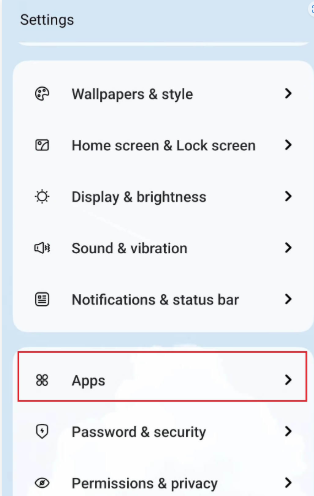 Step 2. On this page, tap Default apps > Locate the PDF viewer section.
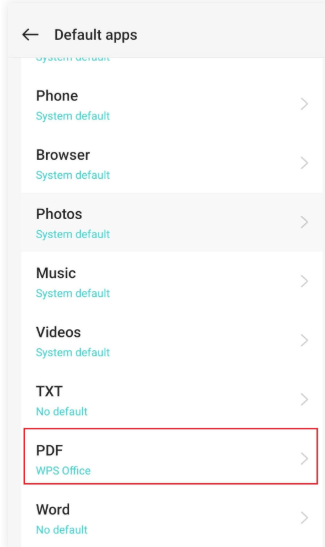 Step 3. Here you can see the default PDF reader on your device > Change the application into "Foxit PDF Editor" that you want to set as the default PDF viewer.
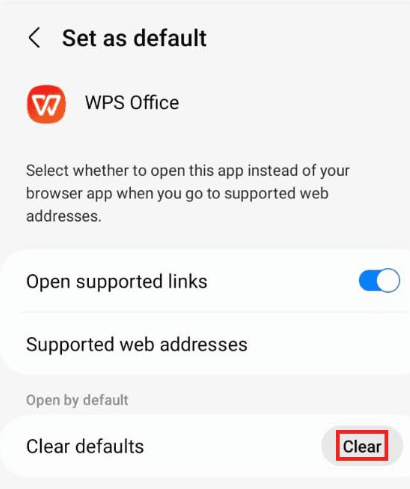
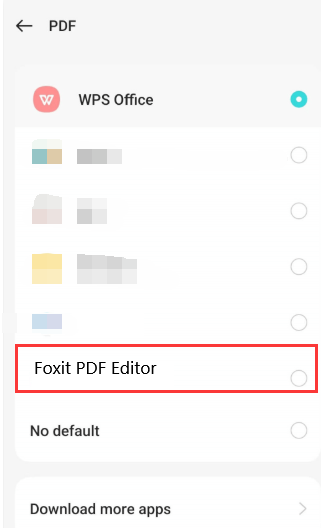 After you change the default viewer on the Android phone, you can open the PDF with Foxit PDF Editor. These steps can also be used to switch the default PDF viewer on Tablets. However,changing the default PDF reader on Samsung devices uses a slightly different method. Here’s how to quickly change the default PDF viewer on Samsung phones and tablets.Step 1. On your Samsung device, open Settings app > Look for Apps button.Step 2. Scroll down to locate the default PDF viewer and tap on it > Hit the Clear button next to the Clear defaults to remove it.
 Step 3. Next, go to your file manager (My File app) and open a PDF file > You’ll be prompted to select a new PDF viewer > Choose your desired app "Foxit PDF Editor" and check Always to set this app as the default.
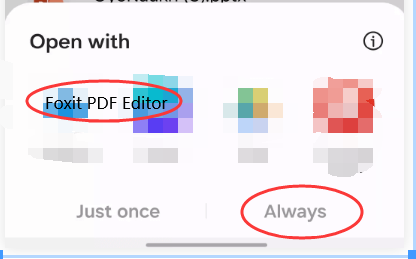 Following the above steps, you can easily switch PDF viewers on Samsung devices.