
Answer
Foxit PDF Editor does not allow users to attach or open attachments of certain file formats within a PDF document for security reasons. A total of 177 file formats are restricted by default. The blacklisted file types include:
"bz", "acm", "ade", "adp", "app", "asa", "asp", "aspx", "ax", "bas", "bat", "bin", "cer", "chm", "clb", "cmd", "cnt", "cnv", "com", "cpl", "cpx", "crt", "csh", "dll", "drv", "dtd", "exe", "fxp", "grp", "h1s", "hlp", "hta", "ime", "inf", "ins", "isp", "its", "js", "jse", "ksh", "lnk", "mad", "maf", "mag", "mam", "man", "maq", "mar", "mas", "mat", "mau", "mav", "maw", "mda", "mdb", "mde", "mdt", "mdw", "mdz", "msc", "msi", "msp", "mst", "mui", "nls", "ocx", "ops", "pal", "pcd", "pif", "prf", "prg", "pst", "reg", "scf", "scr", "sct", "shb", "shs", "sys", "tlb", "tsp", "url", "vb", "vbe", "vbs", "vsmacros", "vss", "vst", "vsw", "ws", "wsc", "wsf", "wsh", "xsl", "arc", "arj", "gz", "bz2", "cab", "class", "command", "desktop", "pi", "hex", "hqx", "ini", "job", "lzh", "z", "rar", "sea", "sit", "tar", "taz", "tgz", "tmp", "webloc", "ad", "zip", "zlo", "zoo", "pdf", "fdf", "jar", "pkg", "tool", "term", "pl", "application", "asx", "cfg", "chi", "crx", "der", "fon", "gadget", "htt", "jnlp", "local", "manifest", "mmc", "mof", "msh", "msh1", "msh2", "mshxml", "msh1xml", "msh2xml", "py", "perl", "plg", "ps1", "ps2", "ps1xml", "ps2xml", "psc1", "psc2", "rb", "pyc", "pyo", "pyd", "xbap", "xnk", "xpi", "air", "appref-ms", "desklink", "glk", "library-ms", "mapimail", "mydocs", "search-ms", "searchConnector-ms", "vxd", "website", "zfsendtotarget" .
If you attempt to attach a file in one of these formats, you will receive an error message: "[File Format Name] could not be added due to security issues."
If you want to allow a restricted file type or block a file type that is usually permitted, you can choose one of the following configuration methods.
Using Foxit Customization Wizard Tool
1.Download the Foxit Customization Wizard Tool that matches your Foxit PDF Editor version from this article:
2.Open the tool and navigate to MSI > OK > Open a Package/File to locate the Foxit PDF Editor MSI installer package.
3.Go to Preferences > Security Settings and edit the file type list.
4.Modify the list in the Edit the default list of file types (Extension) section:
For example, if you want to allow ZIP files (which are restricted by default) and block PNG files (which are permitted by default), enter the following in the blank box of this section:
version:1|.zip:0|.png:3|
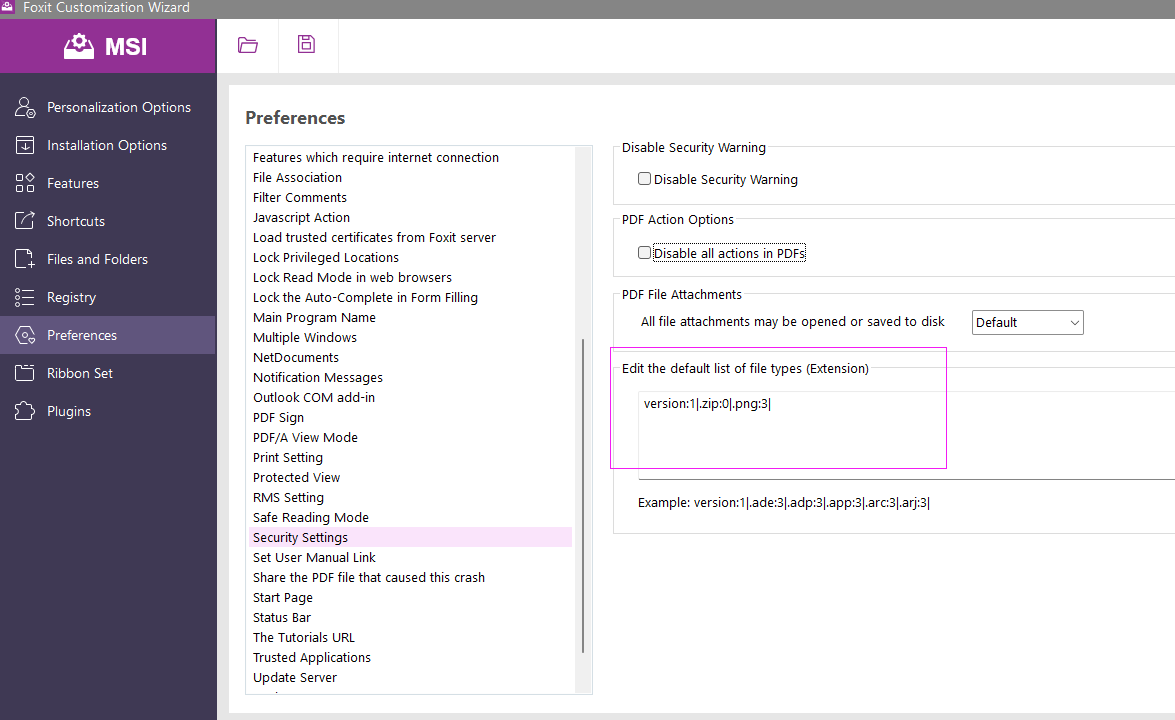
Note: In case of duplicate entries, the product will only consider the value of the first entry. Every item in the list should include an extension and a numerical value indicating the permission level.
Values Explained:
- 0: Users are alerted to potential file safety risks and given two choices: open the file, permanently allow access.
- 1: Users are alerted to potential file safety risks and given three choices: open the file, permanently allow access, or permanently restrict access.
- 2: Always open this file type.
- 3: The file type is restricted from being opened as an attachment, launching it is also not allowed, and a window message is displayed.
5. After completing the configuration in the Foxit Customization Tool, click the Save button in the upper right corner to save the settings as an MST file.
6.Use the following command to apply the MST file during deployment:
msiexec /i Setup.msi TRANSFORMS=xxx.mst
Using XML Editor
1.Download the Foxit Customization Wizard Tool that matches your Foxit PDF Editor version from this article.
2. Open the tool and select "XML Editor Foxit PDF Editor".
3.Go to Preferences > Security Settings and edit the file type list.
4.Modify the list in the Edit the default list of file types (Extension) section:
For example, if you want to allow ZIP files (which are restricted by default) and block PNG files (which are permitted by default), enter the following in the blank box of this section:
version:1|.zip:0|.png:3|
Note: In case of duplicate entries, the product will only consider the value of the first entry. Every item in the list should include an extension and a numerical value indicating the permission level.
Values Explained:
- 0: Users are alerted to potential file safety risks and given two choices: open the file, permanently allow access.
- 1: Users are alerted to potential file safety risks and given three choices: open the file, permanently allow access, or permanently restrict access.
- 2: Always open this file type.
- 3: The file type is restricted from being opened as an attachment, launching it is also not allowed, and a window message is displayed.
5.Save the changes to ProfStore.xml and store the file in the ProfStore folder within your Foxit PDF Editor installation directory. The default path is:
C:\Program Files (x86)\Foxit Software\Foxit PDF Editor\ProfStore
Using GPO Templates
1.Download the Foxit PDF Editor GPO Template that matches your Foxit PDF Editor version from this link.
2.Open Group Policy Editor (gpedit.msc) Iin your system and navigate to:
Computer Configuration > Administrative Templates > Add/Remove Templates. 3.Locate the required .ADM or .ADMX file, add it, and close the window.
4.Open the Foxit PDF Editor GPO template, go to Preferences > Security Settings, click on "Edit the default list of file types(Extension)" this option from its right panel to bring up a new dialog box. In the new dialog box, please choose "Enabled" and set the whitelist and blacklist of the attachment file types in the Options box, click on OK to save the changes.
For example, if you want to allow ZIP files (which are restricted by default) and block PNG files (which are permitted by default), enter the following in the Options box:
version:1|.zip:0|.png:3|
Note: In case of duplicate entries, the product will only consider the value of the first entry. Every item in the list should include an extension and a numerical value indicating the permission level.
Values Explained:
- 0: Users are alerted to potential file safety risks and given two choices: open the file, permanently allow access.
- 1: Users are alerted to potential file safety risks and given three choices: open the file, permanently allow access, or permanently restrict access.
- 2: Always open this file type.
- 3: The file type is restricted from being opened as an attachment, launching it is also not allowed, and a window message is displayed.
5. Additionally, after completing the GPO configuration on the current device as described in the previous steps,
you can apply the same settings to other devices by exporting the relevant registry entry since the GPO configuration is written into the following registry path:
HKEY_LOCAL_MACHINE\SOFTWARE\Policies\Foxit\PDFEditor\Preferences\FeatureLockdown\DefaultLaunchAttachmentPerms
Then please export the registry entry from the current device and import the exported .reg file into other devices to ensure the configuration takes effect across multiple installations of Foxit PDF Editor.